
Closing over Christmas and New Year? A short notice on your website saves customers a wasted phone call and lets them know when to expect a reply. Here’s how to add one, and how to take it down when you’re back.
1. Write the notice
Keep it to two or three short lines. Say when you close, when you reopen, and how to get help with anything urgent. For example: Our office is closed from 4pm Wednesday 24 December and reopens on Monday 5 January. Urgent requests are still monitored.
2. Add it to your homepage in Elementor
- Go to Pages, hover over your homepage and click Edit with Elementor.
- Click the + icon at the top left to open the widgets, and search for Alert.
- Drag the Alert widget to the very top of the page, above your first section.
- On the left, type a Title such as Holiday hours, then paste your notice into Content.
- Set Type to Info for a calm colour. Leave Dismiss Icon on so visitors can close it.
- Click Update.

Using Divi or WPBakery?
- Divi: view your homepage while logged in and click Enable Visual Builder. Add a new section at the top with a Text module, type your notice, give the section a light background colour, then click Save.
- WPBakery: open the homepage in the Frontend Editor, add a Message Box element at the top, type your notice, then click Update.
Want it on every page?
A notice on every page belongs in your website’s header, which is shared by the whole site. Header layouts are easy to upset, so send us a support request with your wording and dates, and we’ll add it for you.
3. Update your hours everywhere else
- Google Business Profile: add Special hours for each day you’re closed. This is what shows on Google Search and Maps, so it’s often the first place people look.
- Social media: update your Facebook and Instagram hours, or pin a post.
- Email: set an out-of-office reply with the same dates.
- Your phone: update your voicemail message.
4. Take it down when you're back
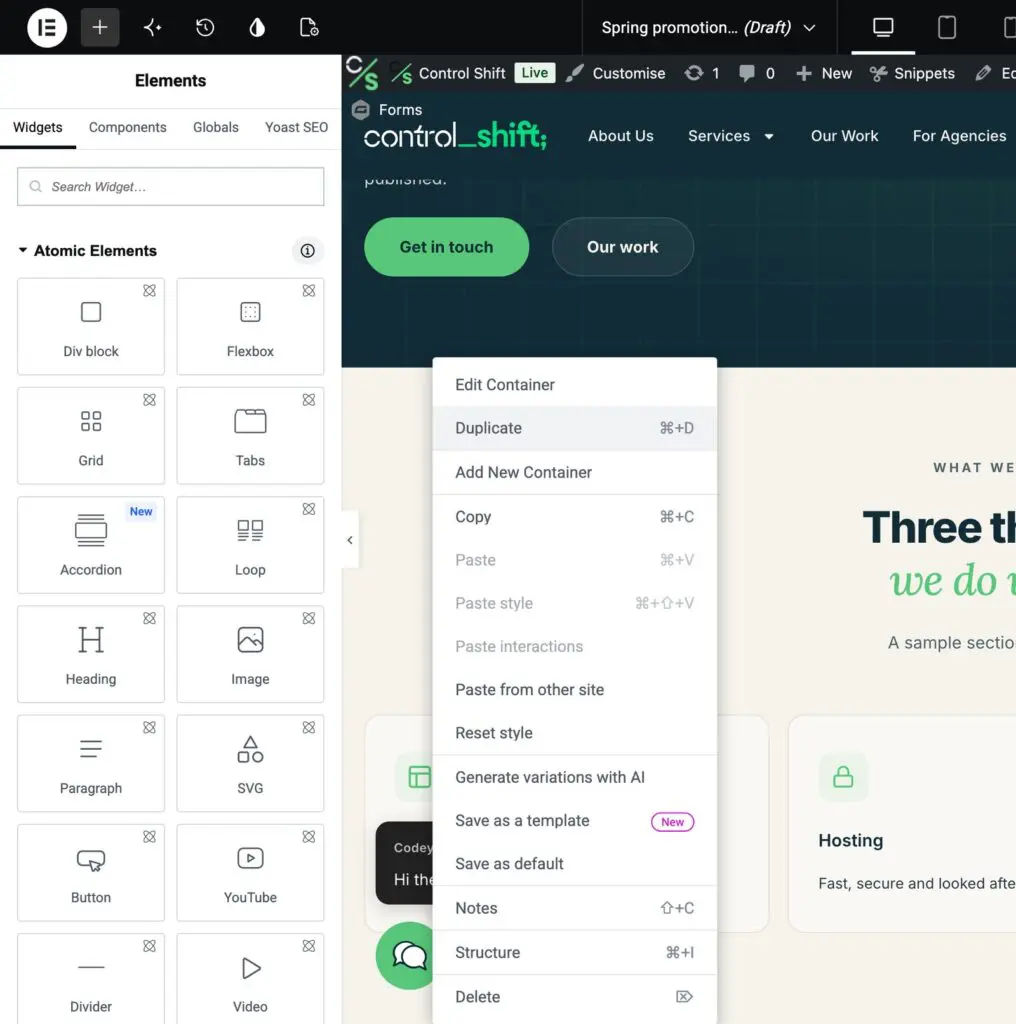
Set a calendar reminder for your first day back. Then open the page in your page builder, right-click the notice and choose Delete (in Divi and WPBakery, use the bin icon), and save.
- Check the page on your phone, both when you add the notice and when you remove it.
- Still seeing the notice after you’ve removed it? You may need to clear your cache.