
New starter, a promotion, or someone moving on? Keeping your team page up to date is one of the easiest changes to make yourself.
First, check where your team lives
On most websites the team is part of a normal page, usually About or Our Team. On some, each person is their own entry: if you see Team or Staff in the menu down the left of your dashboard, add and edit people there instead, the same way you’d add a page.
Add a new team member
The quickest way is to copy an existing profile, so the new one matches the others.
- Open the page and click Edit with Elementor (or your page builder).
- Find a profile that looks the way you want the new one to look.
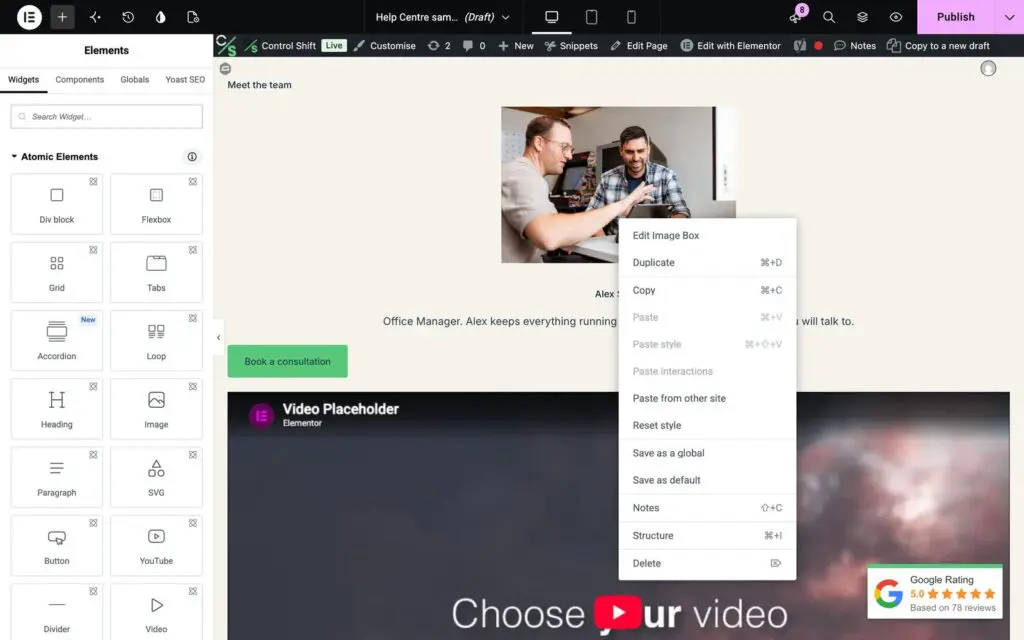
- Copy it. In Elementor, right-click it and choose Duplicate. In Divi, hover over it and click the copy icon. In WPBakery, click the clone icon on the element.
- Drag the copy into place.
- Click the photo and replace it, then update the name, job title and any bio or contact details.
- Click Update (or Save).
Update or remove someone
Click the part you want to change and type over it. To take a profile down, right-click it and choose Delete (in Divi and WPBakery, use the bin icon), then save.
Photo tips
- Use the same shape and framing as everyone else, ideally a square or portrait photo with a similar background.
- Keep the file under about 500KB so the page stays fast. A photo straight off a phone is usually much bigger.
- Check the page on a phone before you finish, as profiles often stack differently on small screens.
Removing someone? Remember their email might also be on a contact form or in the footer. Send us a support request if you’d like us to check.