
Most websites we build use Elementor, which lets you change a page by clicking on it. Here’s how to update text and images safely.
Open the page in Elementor
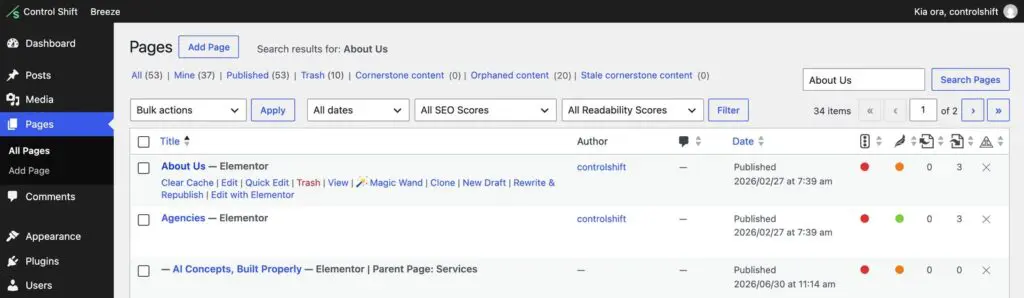
- Log in, then go to Pages in the left-hand menu.
- Hover over the page you want to change and click Edit with Elementor.
Change the text
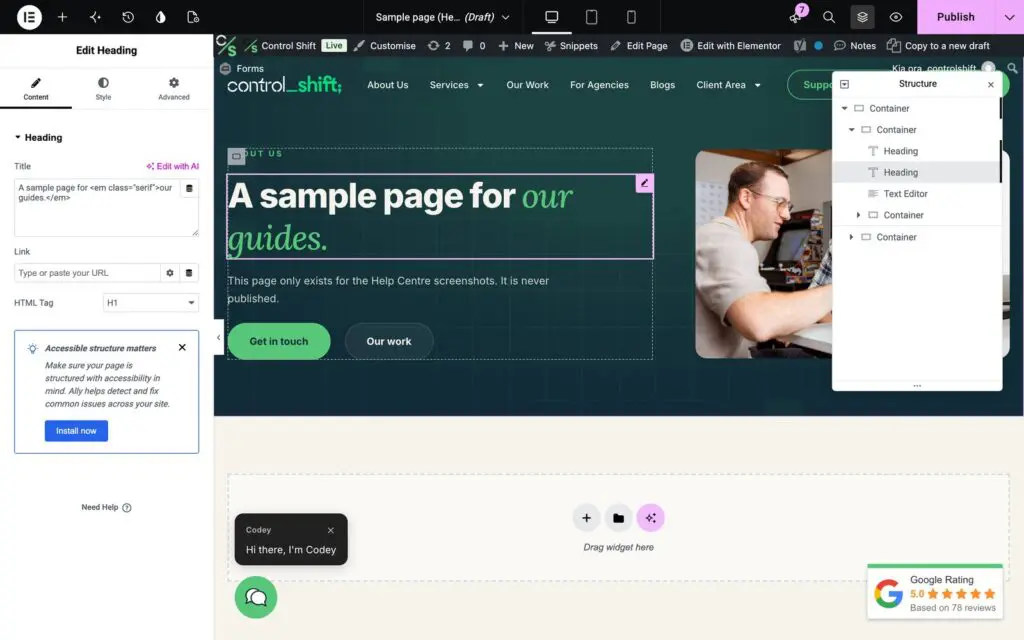
- Click the heading or paragraph you want to change. It gets an outline, and its settings open in the panel on the left.
- Type your new words, either straight onto the page or in the box on the left.
Change an image
- Click the image on the page.
- In the left panel, click the image preview to open the Media Library.
- Choose an image you’ve already uploaded, or click Upload files to add a new one.
- Fill in the Alternative Text with a short description of the image. It helps people using screen readers, and Google.
- Click Select.
Save your changes
Click Publish (or Update) in the top right. Your changes are live straight away. If you see the old version, you may need to clear your cache.
Using Divi or WPBakery?
The idea is the same: open the page in the builder, click what you want to change, then save.
- Divi: view the page while logged in and click Enable Visual Builder in the bar at the top. Click the text or image to edit it, then click Save.
- WPBakery: hover over the page in Pages and click Edit with WPBakery Page Builder, or use the Frontend Editor button. Hover over a block, click the pencil to edit it, then click Update.
Tips
- Made a mistake? Press Ctrl + Z (Windows) or Cmd + Z (Mac) to undo, or use the History option in Elementor.
- Avoid changing fonts and colours on individual pieces of text. Your site’s styles are set up once, so everything stays on brand.
- Keep images a sensible size. Photos straight off a phone are often much bigger than they need to be.