
Staff change, inboxes change. Here’s how to make sure your website’s enquiries reach the right person.
Gravity Forms
- In your dashboard, go to Forms.
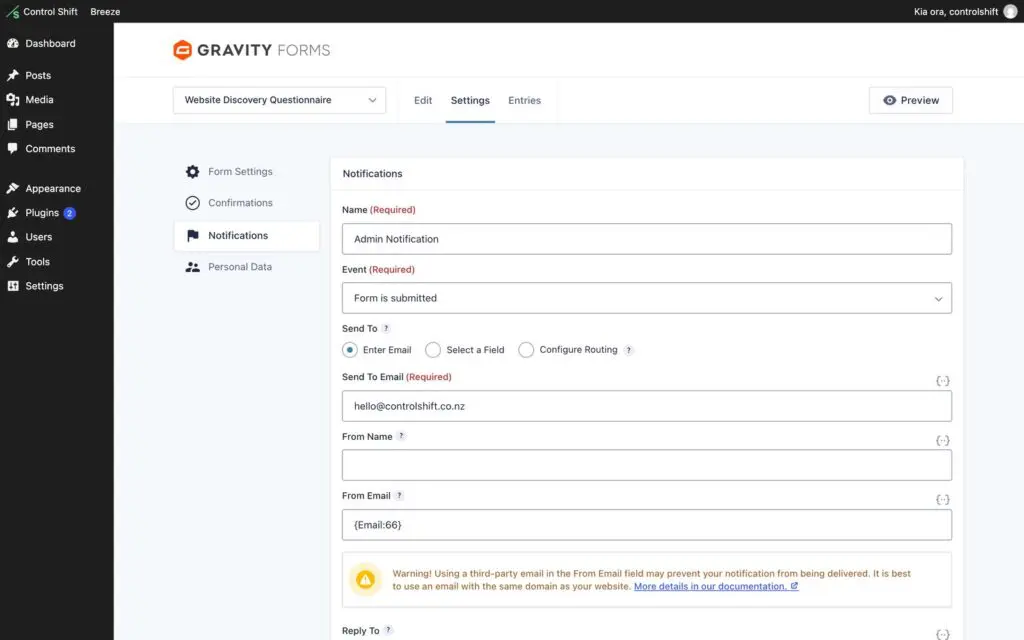
- Hover over the form and click Settings, then Notifications.
- Edit the notification that goes to you, usually called Admin Notification.
- Change Send To Email. To send to more than one person, separate the addresses with a comma.
- Click Update Notification.
Elementor forms
Edit the page with the form in Elementor, click the form, open Actions After Submit, then Email, and change the To address. Click Update.
Contact Form 7
Go to Contact, open the form, click the Mail tab and change the To address. Save.
Test it
Fill in the form on your website yourself, then check the inbox, including the spam folder. Using Gravity Forms? Every enquiry is also saved under Forms, then Entries, so you won’t lose one even if an email goes astray.
Enquiries not arriving at all?
If the test never arrives, the problem is usually how your website sends email, not the form. Send us a support request and we’ll check it. Password reset emails use the same system, so it’s worth fixing.