
To load quickly, your website and your browser both keep saved copies of your pages, called a cache. Now and then that means you see an older version after making a change. Here’s how to get the latest.
Step 1: refresh your browser properly
A normal refresh can still use the saved copy. Force a fresh one instead:
- Windows: press Ctrl + Shift + R (or Ctrl + F5).
- Mac: press Cmd + Shift + R.
- Phone: open the page in a private or incognito tab.
Step 2: clear the website's cache
If you’re logged in to your website, look for Breeze in the dark bar at the top of the screen. Hover over it and click Purge All Cache. Wait a few seconds, then refresh the page again.
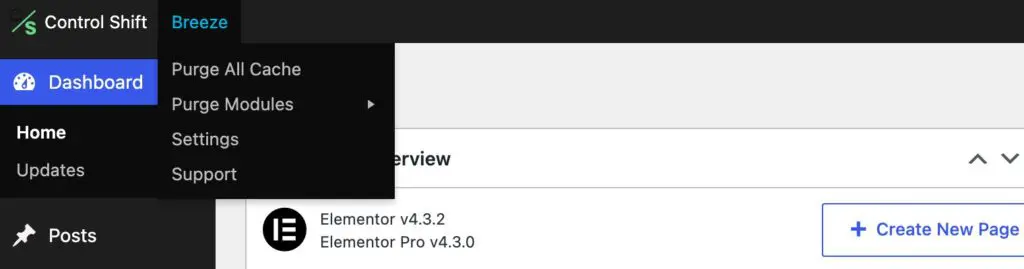
Most websites we host use Breeze. If you don’t see it, your login may not have access, or your site may use a different cache. That’s fine: just move on to step 3.
Step 3: still seeing the old version?
Changes to menus, headers and footers can take a few minutes to show on every page. If it’s been longer than that, send us a support request with the page link and we’ll clear everything on our side, including any caching in front of your site.
Good to know
Other people may see the new version before you do, or the other way round. It depends on when each browser last saved a copy. Clearing the cache doesn’t delete anything from your website.