
If you sell through WooCommerce and do your books in Xero, typing every order into Xero gets old fast. A sync plugin sends them across for you. We use MyWorks Sync for Xero on our own website, and it’s what this guide walks through.
What it does
- New orders become invoices in Xero.
- Customers become Xero contacts.
- Payments are marked as paid, so your bank reconciliation lines up.
- Each product is matched to a Xero item and account, so sales land in the right place.
Before you start
- You’ll need to be an administrator on your website and have the right access in Xero.
- Ask your accountant which Xero accounts your online sales should go to. It’s much easier to get this right at the start.
- Plan to test with one order before you rely on it.
1. Install the plugin
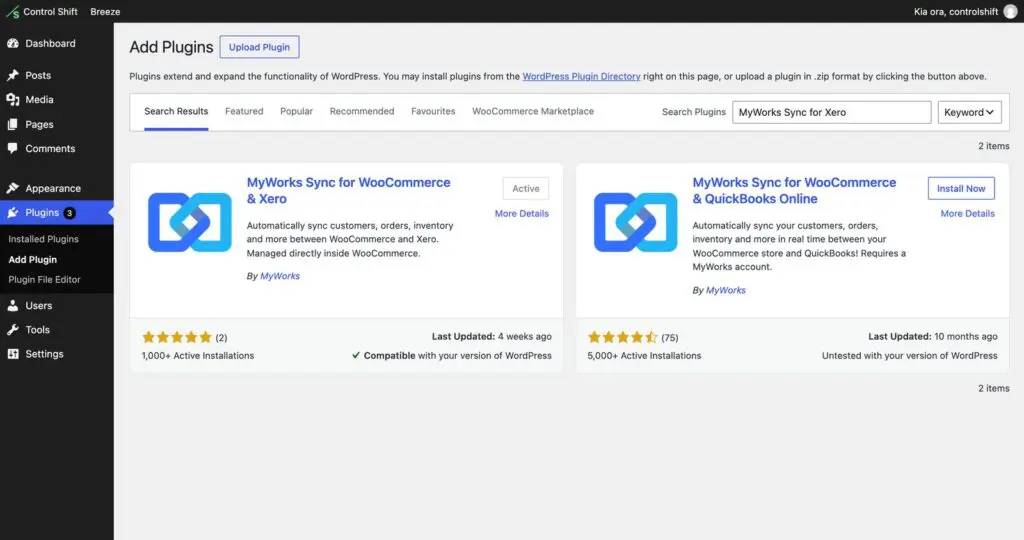
In your dashboard, go to Plugins, then Add New Plugin. Search for MyWorks Sync for Xero, then click Install Now and Activate.
2. Connect it to Xero
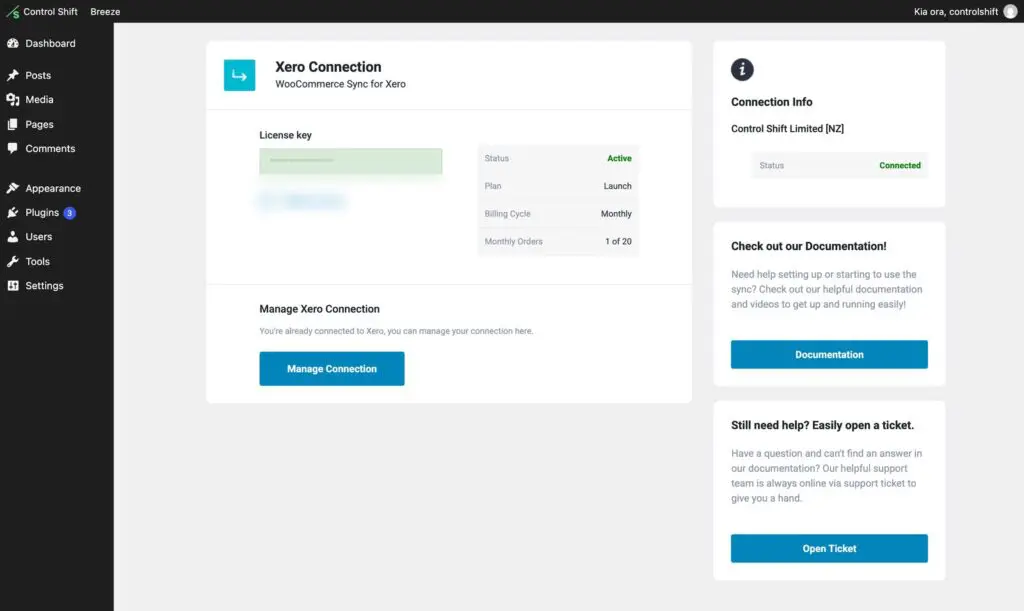
Open the MyWorks menu and go to Connection. Click to connect, log in to Xero, choose your organisation and allow access. Once it’s connected, the status shows as Connected with your organisation’s name.
3. Choose your default accounts
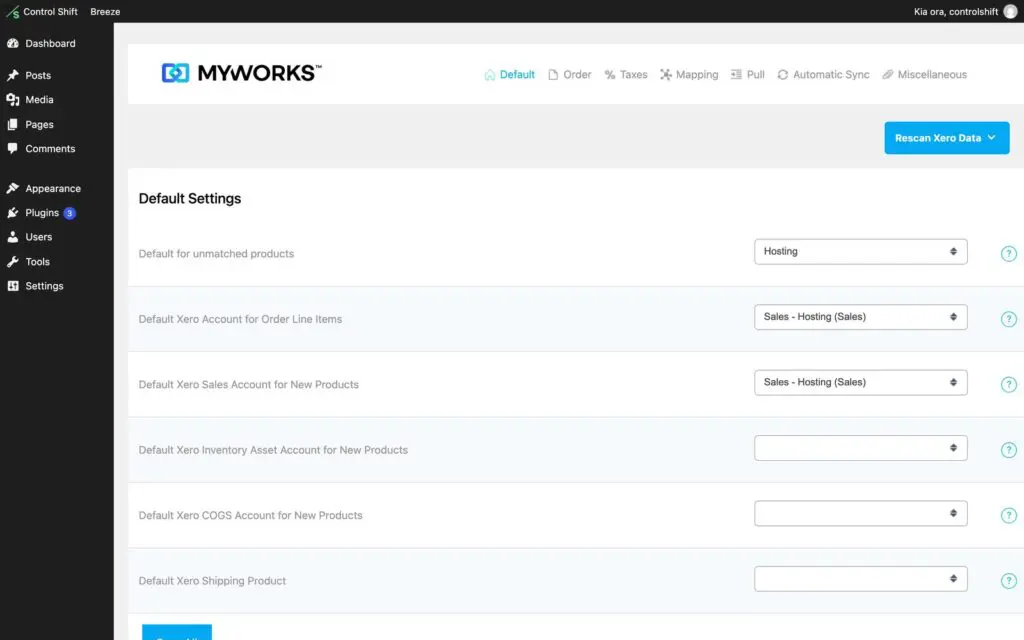
Under Settings, set the default Xero account for your order lines and for new products. These are the accounts your accountant suggested. Anything you don’t map individually falls back to these.
4. Match your products
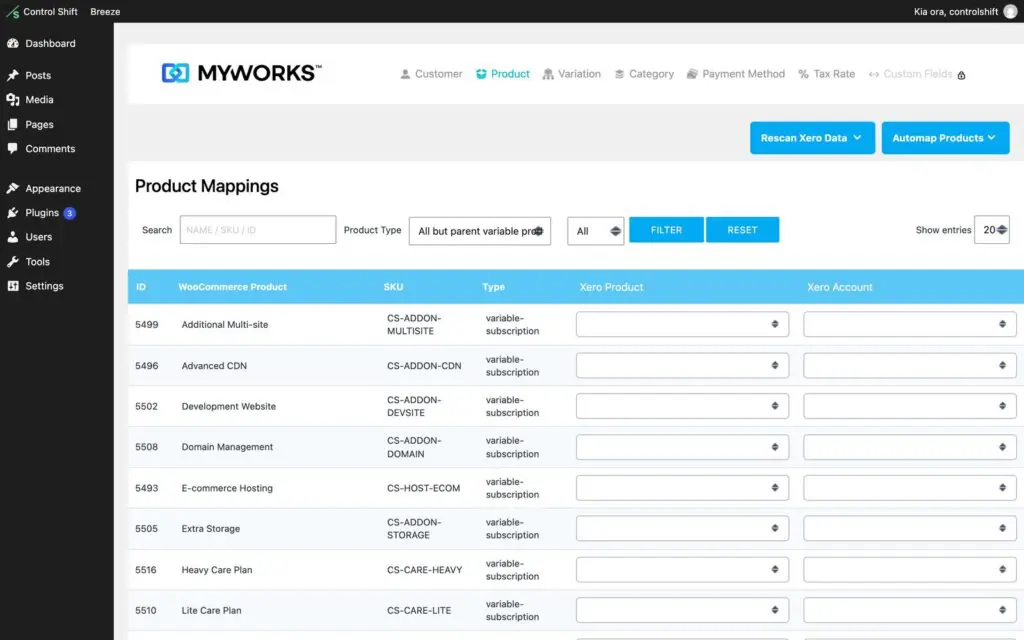
Under Map, then Product, link each WooCommerce product to its Xero item and sales account. The Automap button can match products with the same name or code, which saves time on a bigger shop.
5. Test with one order
Place a small test order, then check Xero. You should see the invoice, the customer as a contact, and the payment if it was paid by card. Once that looks right, you’re away.
Things worth knowing
- Plans: the free plan covers a limited number of orders a month (20 at the time of writing), and some extras need a paid plan. Check the current plans on the MyWorks website.
- Who sends the invoice: decide whether your website or Xero emails invoices and receipts, so customers don’t get two of each.
- Refunds and edits: check how your plan handles refunds and changed orders, and keep an eye on the first few.
- Updates: anything that touches your money is worth testing before you update it.
Useful links: Xero, MyWorks Sync for Xero and the plugin on WordPress.org.
Would rather we set it up? Send us a support request and we’ll connect it, map your products and test it with you.