
Built a section you’re happy with, like a row of services, a set of reviews or a call to action? You can reuse it on other pages without starting from scratch.
Copy and paste it to another page
- Open the page with the section in Elementor.
- Right-click the section and choose Copy.
- Open the other page in Elementor.
- Right-click the section you want it to go under and choose Paste.
- Change anything that needs changing, then click Publish or Update.
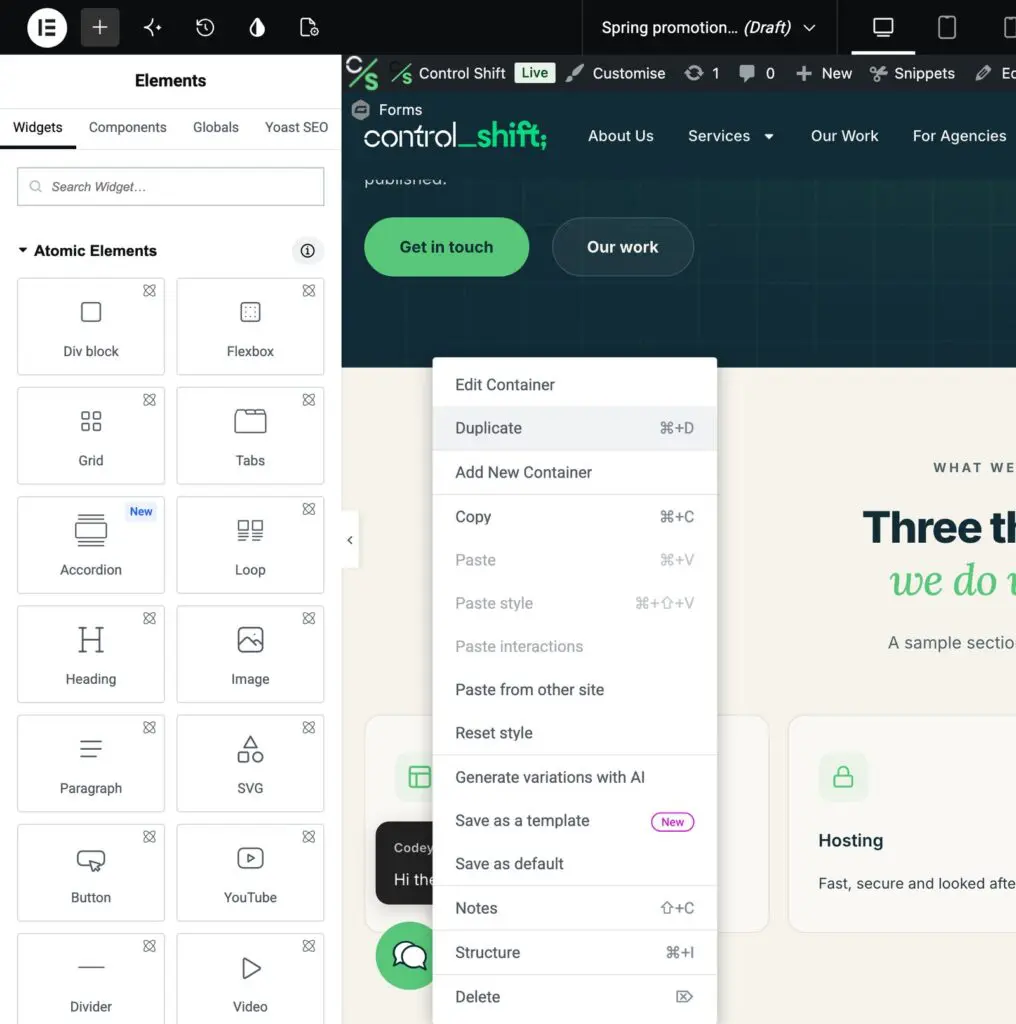
Copy it on the same page
Right-click the section and choose Duplicate. A copy appears straight underneath, ready to edit or drag somewhere else.
Save it to use again and again
- Right-click the section and choose Save as a template, then give it a clear name like Call to action: book a consultation.
- To add it to any page later, click the folder icon in the Drag widget here area at the bottom of the page, open the Templates tab, and insert it.
Copy just the look
Want a section to look like another one without changing its words? Copy the original, then right-click the other section and choose Paste style.
Tips
- After pasting, check the page on a phone using the phone icon at the top of Elementor.
- Pasted sections keep your site’s fonts and colours, so they stay on brand.
- Using Divi? Right-click a section there too for Copy and Paste, and use Save to Library to reuse it.
- Stuck? Send us a support request and we’ll help.