
The best way to show a video on your website is to put it on YouTube or Vimeo first, then embed it. Uploading video files straight to WordPress makes your site slow and uses up storage.
Get the video's link
Open the video on YouTube or Vimeo and copy the address from your browser, or use the Share button.
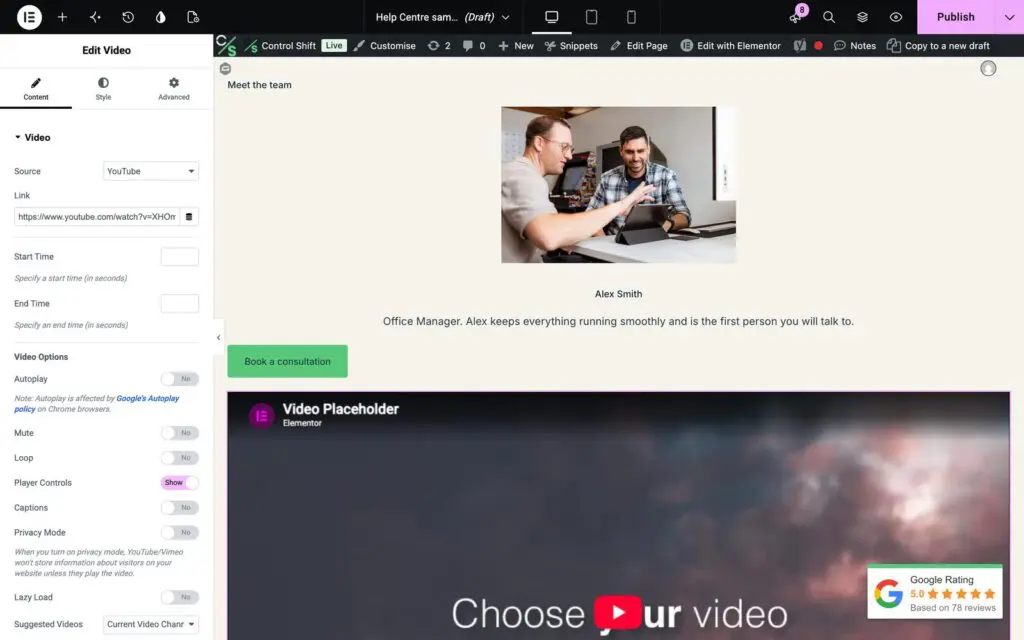
In Elementor
- Edit the page with Elementor.
- Search for the Video widget on the left and drag it onto the page.
- Choose YouTube or Vimeo as the source and paste the link.
- Click Update.
In Divi or WPBakery
Add a Video module (Divi) or a Video Player element (WPBakery), paste the link into its settings and save.
In the WordPress block editor
Paste the link on a line of its own. WordPress turns it into a video player automatically.
Tips
- Avoid autoplay with sound. If you want a video to play by itself, it needs to be muted.
- In Elementor, turning on Lazy Load or an image overlay keeps the page fast until someone presses play.
- Check it on your phone. Stuck? Send us a support request.