
Updated your terms, a form or a brochure? WordPress doesn’t replace a file in place, so you upload the new one and point your links at it.
1. Upload the new version
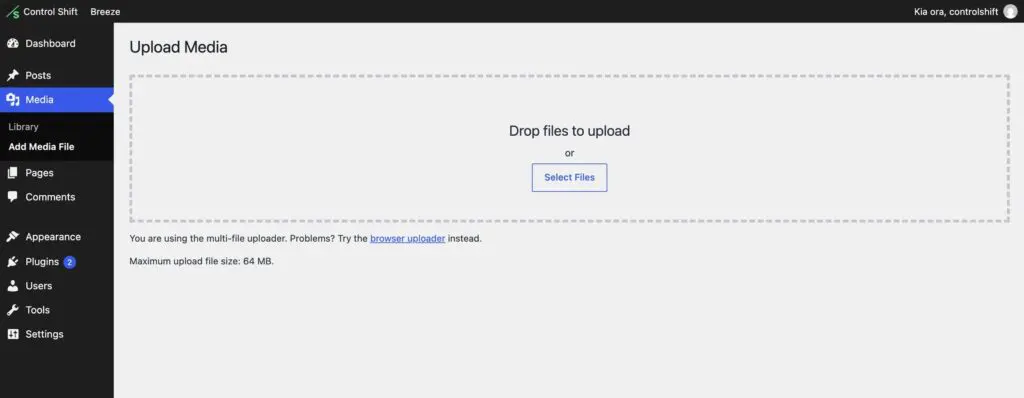
- In your dashboard, go to Media and click Add New Media File.
- Drag your PDF in.
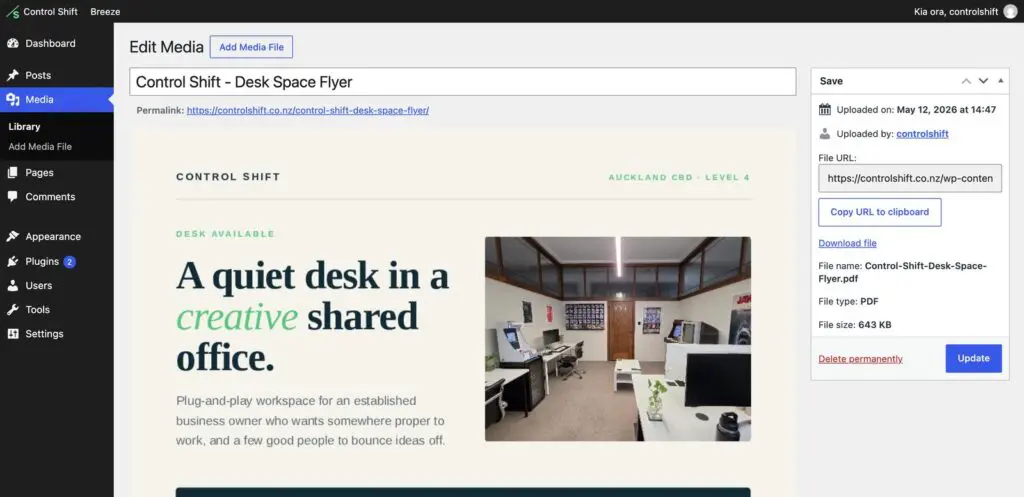
- Click the new file, then click Copy URL to clipboard. That’s the new link.
2. Update the links
Find each button or link that pointed to the old file, and paste in the new link. In Elementor, click the button and change the Link field. In Divi and WPBakery, open the button’s settings and change its URL. Then click Update.
Not sure where it’s linked? Common places are the footer, a downloads or resources page, the contact page and form confirmation messages.
3. Deal with the old version
Once nothing links to it, you can delete the old file from Media. If it might be bookmarked or emailed around, leave it there, or ask us to redirect its old address to the new file.
Easier option: ask us to swap it in place
If the same PDF is linked from lots of places, we can replace the file behind its existing address so every link updates at once. Send us a support request with the new file attached.
Tips
- Give the file a clear name before uploading, like terms-of-engagement-2026.pdf. The file name becomes part of the link.
- Keep PDFs under a few MB where you can. Big ones are slow to open on phones.