
There are two easy ways to add a blog post. Copying an existing post is usually quickest, because the layout is already done and you only change the words and pictures.
Option 1: copy an existing post (quickest)
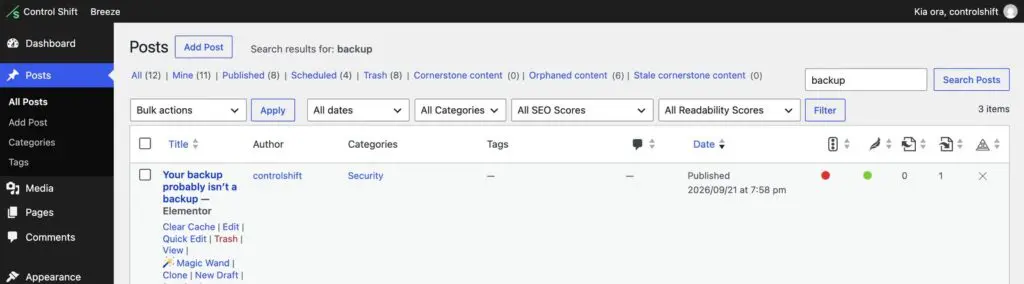
- Go to Posts and hover over a post that’s laid out the way you want.
- Click New Draft (or Clone). You’ll get a copy saved as a draft, so the original post isn’t touched. Don’t see those links? Let us know and we’ll add them.
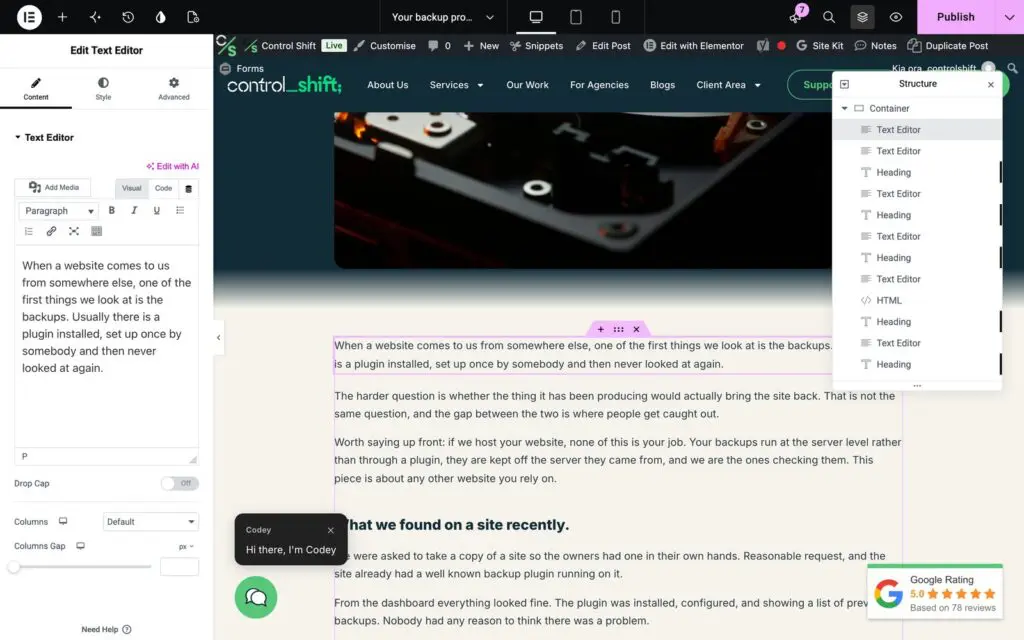
- Open the copy in your page builder. Depending on how your site was built, that’s Edit with Elementor, Divi’s Visual Builder, WPBakery’s Frontend Editor, or simply the WordPress editor.
- Click each heading or paragraph and replace the words with your own, either straight on the page or in the panel on the left.
- To swap a picture, click it, then click the image preview on the left and choose or upload a new one.
- Don’t need a section? Right-click it and choose Delete.
Option 2: start a new post
- Go to Posts and click Add Post.
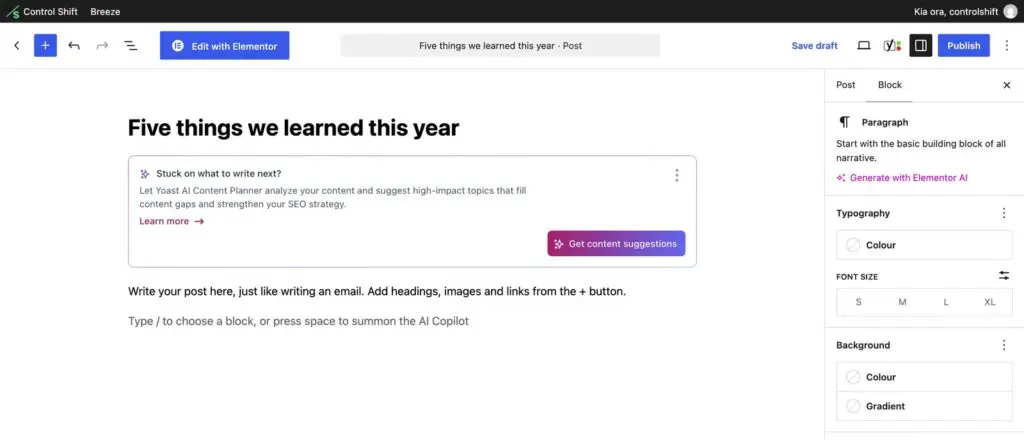
- Type your title at the top.
- Write straight into the WordPress editor, just like an email, using the + button for headings, images and lists.
- Or, if your posts are built with a page builder, open it in that instead (for example Edit with Elementor) and add a text block for your words and a heading for each subheading.
Your site’s fonts and colours apply automatically, so there’s no need to style the text yourself.
Check the details before you publish
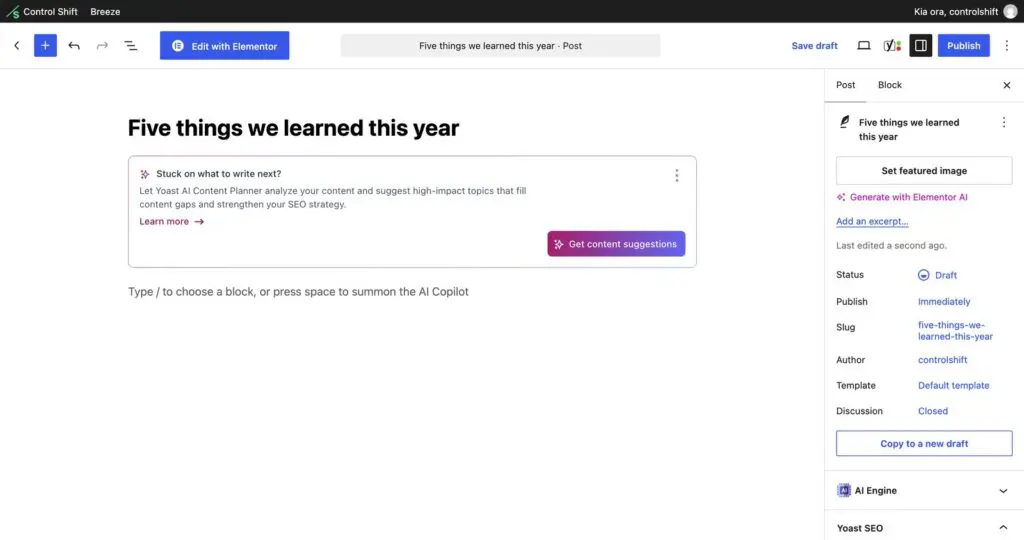
In the WordPress editor, the panel on the right is where you set:
- Featured image: the picture shown on your blog page and when the post is shared. On a copied post, make sure you’ve changed it.
- Categories: pick the one that fits.
- Excerpt: a one or two sentence summary for the blog page.
Publish or schedule
Click Publish to put it live straight away, whether you’re in the WordPress editor or your page builder. To publish it later instead, go to the WordPress editor, click the date next to Publish (it says Immediately), choose a date and time, and click Schedule.
Tips for posts people read
- Answer one question your customers actually ask.
- Break it up with headings every few paragraphs.
- Add a description (alt text) to every image.
- Link to a relevant page on your website, such as a service or your contact page.
- On a copied post, read it through once more to catch any leftover words or links from the original.