
Buttons are one of the most common things to update: new wording, a new page, or a booking link that’s changed.
In Elementor
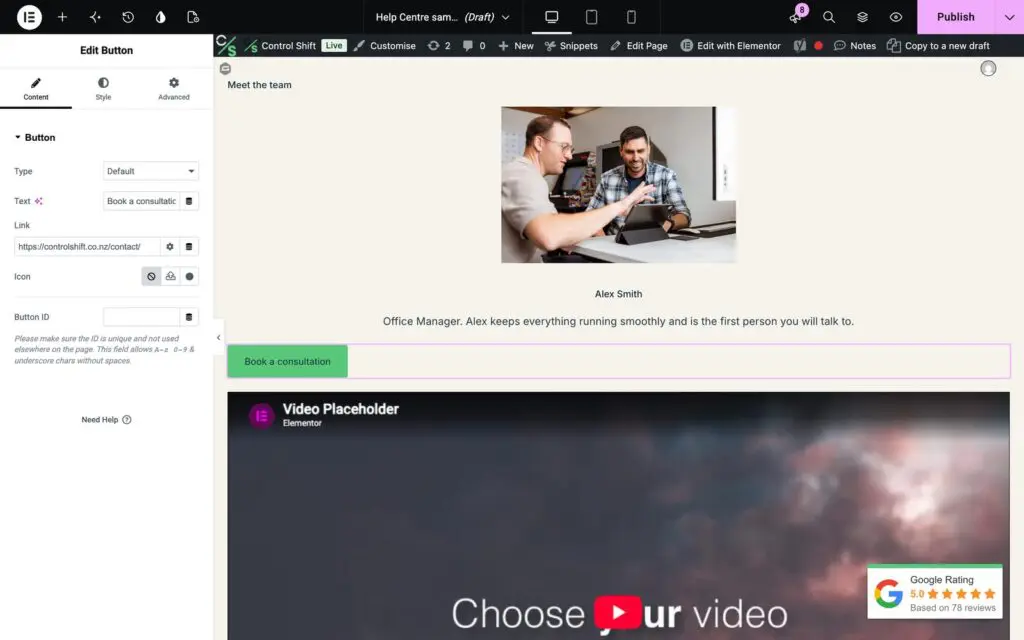
- Open the page and click Edit with Elementor.
- Click the button.
- On the left, change the Text.
- Change the Link. For a page on your own site, start typing its name and pick it from the list. For another website, paste the full address.
- Click Update.
In Divi
Hover over the button, click the cog icon, then change Button Text and Button Link URL. Save the page.
In WPBakery
Hover over the button, click the pencil icon, change the Text, then click the link field to change where it goes. Save the page.
Before you finish
- Click the button on the live page to check it goes to the right place.
- Keep wording short and clear about what happens next, like Book a consultation rather than Click here.
- Only open links in a new tab when they go to another website.
Button in your header or footer? Those are edited once for the whole site, not on each page. Here’s how to change menu and footer links. Still stuck? Send us a support request.